
The Frustrating Reality of Home Network Dead Zones
I still remember moving into my new apartment, feeling incredibly excited to finally set up my home office. I paid for the highest internet tier available, expecting everything to run like a dream. But the very first time I tried to load a YouTube video in my bedroom, the dreaded buffering wheel just kept spinning. My beautiful, sturdy brick walls were completely blocking my expensive internet package from reaching my laptop. I spent nights sitting on the cold hallway floor just to send a simple email with an attachment. It was an absolute nightmare that made me question why I even moved in the first place.
This is a struggle so many of us face quietly every single day. You sit on the living room couch and enjoy lightning-fast downloads, but the moment you step into the kitchen or the master bedroom, your connection drops entirely. It feels incredibly unfair. You are paying good money for a service that you cannot even use in half of your own home.
The daily interruptions slowly chip away at your mental peace. Dropped video calls during important meetings make you look unprofessional to your boss or clients. Your favorite Netflix show pauses right at the best part, leaving you staring at a frozen screen in pure frustration.
Even simple tasks like scrolling through social media before bed become annoying chores. You find yourself constantly toggling your phone's Wi-Fi on and off, hoping to catch a stray bar of signal. It completely ruins the relaxing atmosphere of your home. Instead of unwinding after a long day, you are fighting an invisible battle with radio waves.
For families, the situation is even more chaotic. Kids complain about lagging games, while parents struggle to work remotely from the only room with a decent connection. The solid architecture that keeps your house safe from bad weather is the exact same thing keeping you disconnected from the rest of the world.
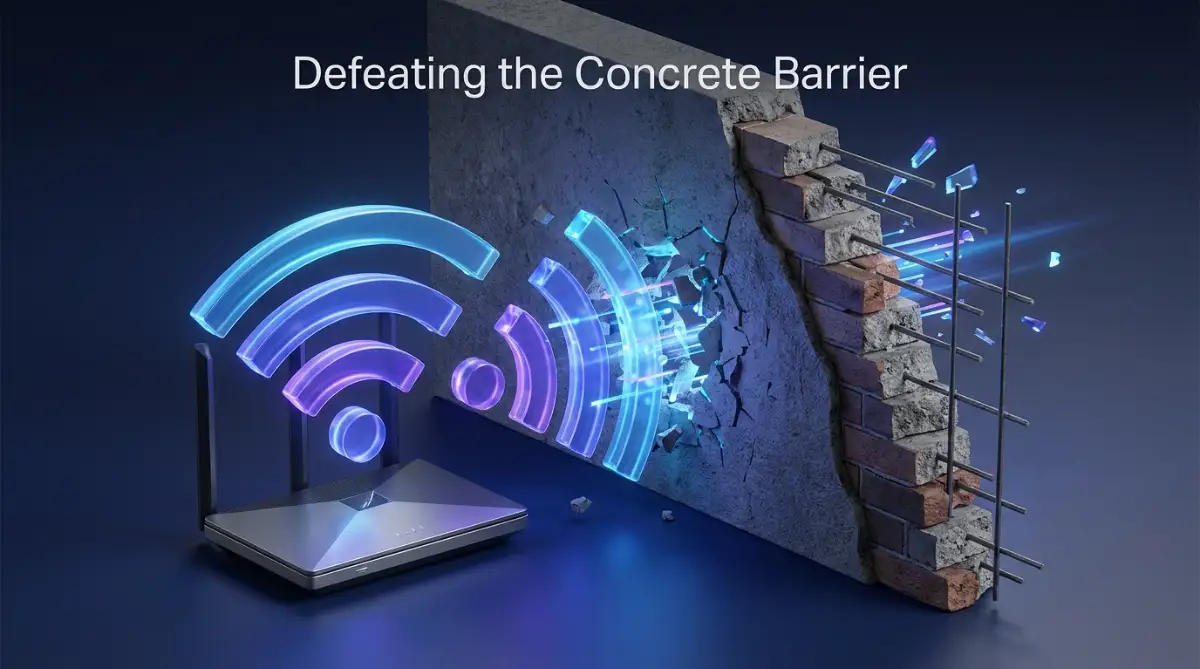
Why Thick Walls Destroy Your Connection
Before fixing the problem, we need to understand exactly what is happening behind the scenes. Wireless internet does not work like magic; it relies on radio waves to send data back and forth. These waves travel through the air, but they hate physical obstacles.
When a Wi-Fi wave hits a standard drywall, it passes through easily with a slight drop in speed. But when it hits heavy materials like brick, solid concrete, or stone, the signal gets absorbed or reflected back. Think of it like shining a flashlight through a thick fog.
The light is still there, but by the time it reaches the other side, it is too weak to help you see anything. Metal is even worse for your network. If your home has metal studs, heavy piping, or thick foil insulation inside the walls, it acts like a giant shield bouncing your signal away.
Water also absorbs radio frequencies surprisingly well. A large fish tank, a massive indoor plant, or even a thick brick fireplace can create a massive dead zone right behind it. Your router is trying its hardest, but the laws of physics are actively working against it.
Myth vs. Reality: Do You Just Need a New Router?
A common myth is that buying the most expensive router on the market will magically blast through any concrete wall. Retailers love selling gadgets with eight giant antennas, promising ultimate house-wide coverage. But raw power alone cannot change how radio waves interact with dense physical matter.
Upgrading an old, outdated device is certainly helpful. However, a brand new router placed in the exact same bad location will give you the exact same bad results. You need strategy, not just raw spending power, to overcome dense architecture.
Proven Tactics to Penetrate Heavy Architecture
To get your internet working in every corner of your house, you have to outsmart your own walls. We can use a few highly effective, science-backed adjustments to guide those signals exactly where they need to go. You do not need a degree in computer engineering to make these changes today.
Rethinking Your Router's Hiding Spot
Most people treat their routers like an ugly piece of trash. We hide them behind flat-screen TVs, shove them inside wooden TV cabinets, or drop them on the floor in the corner of the living room. This is the absolute worst thing you can do for your connection.
Your router needs to be out in the open to breathe and broadcast effectively. Placing it high up on a bookshelf gives the radio waves a better angle to travel outward and slightly downward, bypassing low furniture. Never place your network equipment next to thick load-bearing walls if you can avoid it.
Try to find the most central, open location in your house. If the device sits right in the middle of your home, the signal has less distance to travel to reach your furthest rooms. Keep it away from microwaves, baby monitors, and thick metal appliances that cause severe wave interference.
Here is a small trick I learned the hard way after months of poor connectivity.
I used to hide my router right behind a massive stack of thick hardcover books because I thought the blinking lights looked messy. The day I finally moved it to an open, high shelf, my bedroom internet speed literally tripled without spending a single penny. My desire for a tidy room was the only thing ruining my digital life.
Mastering the Frequency Highway: 2.4 GHz vs. 5 GHz
Every modern router broadcasts two different types of wireless signals at the same time. These are known as the 2.4 GHz band and the 5 GHz band. Understanding the difference between these two is the secret weapon for heavy brick houses.
The 5 GHz band is incredibly fast and perfect for streaming 4K movies or downloading large files. However, it is very weak when it comes to penetrating solid objects. A 5 GHz wave will lose almost all of its strength after passing through just one solid concrete barrier.
On the other hand, the 2.4 GHz band is slightly slower but heavily resilient. It has a longer wave pattern that can punch through brick, stone, and wood much better than its faster sibling. If you are struggling to get a signal in a distant room, manually connecting your device to the 2.4 GHz network is often an instant fix.
Watch this quick, helpful breakdown to see exactly how these frequencies interact with your home's layout!
Many routers combine these two bands into one single network name, automatically guessing which one your phone needs. Sometimes, this automatic feature fails miserably. You can log into your device settings and split them into two separate names, giving you total manual control over your connection.
Adjusting External Antennas for Directed Power
If your router has physical antennas sticking out of the back, you have a huge advantage. These antennas dictate the physical shape of the invisible Wi-Fi bubble expanding through your house. Pointing them all straight up is not always the best move.
Radio waves broadcast outward from the sides of an antenna, not out of the pointed tip. If you need the signal to travel straight across a single floor, keep the antennas standing vertically. But if you need the internet to reach the floor directly above you through a concrete ceiling, lay one antenna completely flat horizontally.
Angling them at a 45-degree angle can also help scatter the signal in a mixed pattern. Play around with different positions while running a speed test on your phone in the dead zone. Small physical tweaks can drastically alter how the waves bounce around your hallways.
Leveraging Your Home’s Electrical Wiring
Sometimes, a brick wall is simply too thick for any wireless wave to penetrate. In these extreme cases, you can bypass the air entirely and use the copper wires already hiding inside your walls. This is where Powerline Adapters come into play.
A powerline adapter kit comes with two small plugs. You plug the first one into a regular wall outlet near your router and connect them with a short ethernet cable. You take the second plug, walk into your dead zone room, and plug it into any available wall socket.
How It Tricks Heavy Architecture
The internet data travels from your router, into the first plug, and shoots right through your home's electrical wiring. It bypasses the concrete walls completely and pops out of the second plug in your bedroom. From there, you can connect your laptop directly with a cable, or attach a small Wi-Fi emitter.
This method feels like absolute magic when you first try it. It works best in houses where the electrical wiring is in reasonably good condition. Keep in mind that you should plug these adapters directly into the wall, never into a multi-plug extension cord, as that will kill the data transfer.
The Ultimate Fix: Introducing Mesh Networks
If you have a large home with multiple thick walls, simple tricks might not cover every single room. Traditional range extenders often fail here because they just catch a weak, dying signal and try to repeat it. This usually results in a terribly slow, frustrating secondary network.
A Mesh Wi-Fi system is a completely different approach to home internet. Instead of relying on one single box in the living room, a mesh system uses three or four powerful nodes scattered around your house. They all talk to each other seamlessly, creating a massive, overlapping blanket of connectivity.
You can place one node in the hallway, one in the kitchen, and one near the bedroom. The signal hops from node to node, easily maneuvering around heavy brick barriers instead of trying to punch straight through them. As you walk through your home, your phone automatically connects to the closest, strongest node without you ever noticing a drop.
Mesh systems are slightly more expensive, but they are incredibly user-friendly to set up. Most come with an intuitive smartphone app that guides you through the placement process. It even tells you if a node is too close to a thick wall, helping you optimize the layout
Beyond Basic Placement: Expert-Level Network Tweaks
Once you have moved your router out of that dusty cabinet, you might still face a few stubborn dead spots in your home. This is where we need to look past physical placement and tweak the internal settings of your network. These adjustments are completely free, and they can make a massive difference in how your signal behaves around heavy architecture.
Think of your wireless internet as a busy highway. If everyone in your neighborhood is using the exact same highway, traffic is going to slow down to a crawl. This is known as channel interference, and it is a massive problem in crowded apartment buildings or closely built suburban houses.
Your router uses specific radio channels to send out data. Most routers come straight out of the box set to "Auto" mode, which means they usually default to the most common channels. If your neighbor's router is broadcasting on the exact same frequency channel as yours, those invisible radio waves crash into each other.
This interference makes it even harder for your signal to push through dense concrete or brick. You can fix this easily by downloading a free Wi-Fi analyzer app on your smartphone. Walk around your house and let the app scan the airwaves to see which channels are heavily congested.
For the 2.4 GHz band, you generally want to manually set your router to channel 1, 6, or 11. These three specific channels do not overlap with each other, giving you a clear, unobstructed lane for your data to travel. A clear channel means a stronger, more focused signal that can actually penetrate those heavy interior barriers.
The Magic of a Wired Backhaul Setup
If you decided to invest in a mesh network, you are already on the right track to eliminating dead zones. But there is a secret trick that professionals use to make these systems unstoppable. It is called a wired backhaul, and it completely bypasses the problem of heavy walls.
Normally, mesh nodes communicate with each other wirelessly. The main unit talks to the hallway unit, which then talks to the bedroom unit. But if you have a massive brick wall between those nodes, they will still struggle to communicate clearly with each other.
A wired backhaul means you run a physical Ethernet cable between your main router and the secondary mesh nodes. By doing this, the nodes do not have to rely on a weak wireless signal passing through stone or concrete. They receive a full-speed, hardwired connection directly from the source.
Once the remote node gets that full-speed internet through the cable, it broadcasts a perfect, strong wireless bubble exactly where you need it. It is like having a brand-new main router in every single room of your house. If you are serious about managing your digital lifestyle efficiently, a wired backhaul is the ultimate permanent fix.
Keeping Your Equipment Fresh and Updated
We often treat our networking gear like it is completely invisible. We plug it into the wall on the first day and never think about it again until the internet goes down. But just like your smartphone, your router runs on an operating system that needs regular maintenance.
Manufacturers frequently release firmware updates for their devices. These updates fix security bugs, improve device communication, and often enhance the actual broadcasting strength of the antennas. Running an outdated router is a massive waste of its true hardware potential.
When your devices constantly struggle to maintain a weak connection, they work incredibly hard behind the scenes. This constant searching for a signal drains power quickly. It is very similar to figuring out why your laptop battery drains so fast when it is shut down; background processes are quietly exhausting your system resources.
Log into your router's mobile app or web interface at least once every few months. Look for the system settings tab and hit the check for updates button. A simple five-minute software patch can sometimes resolve connection drop-outs that you thought were caused by your walls.
The Simple DNS Speed Hack
Here is a brilliant little trick that helps when you have a weak signal bouncing through heavy walls. While it does not physically push radio waves harder, it makes your browsing experience feel significantly faster. It involves changing your Domain Name System, or DNS.
Think of a DNS as the phonebook of the internet. When you type a website name into your browser, your router asks the DNS server to find the numerical IP address for that site. Most Internet Service Providers use incredibly slow, outdated DNS servers by default.
When you have a weak Wi-Fi signal in your bedroom, a slow DNS server makes the lag feel ten times worse. You can easily log into your network settings and change your primary and secondary DNS to a faster public option. Services like Cloudflare or Google offer lightning-fast, free servers that process these requests instantly.
By speeding up the background translation process, web pages will start loading faster even on a struggling connection. It removes a layer of digital friction, making your spotty connection much more tolerable. You can read more about how secure internet protocols work through resources like the Internet Engineering Task Force (IETF) if you love networking details.

Silent Network Killers: What You Are Doing Wrong
When we desperately want faster internet, we usually start buying things or pressing buttons without a clear plan. This panicked approach almost always makes the situation worse. There are a few massive pitfalls that can completely destroy your home network performance if you are not careful.
One of the most common mistakes is rushing out to buy a cheap plug-in Wi-Fi repeater. You have probably seen these little white boxes advertised online for incredibly low prices. They promise to grab your existing signal and blast it through your entire house.
The reality is that traditional repeaters are terribly inefficient. Because they use a single radio to receive and transmit data, they instantly cut your internet speed in half the moment you connect to them. If you place a cheap repeater next to a thick concrete wall, it will just broadcast a completely useless, agonizingly slow signal to the next room.
Another huge error is ignoring the physical environment around your router. People often place their equipment in the kitchen or near laundry rooms. This is a massive mistake because household appliances are natural enemies of wireless signals.
Microwave ovens, for example, operate on the exact same 2.4 GHz frequency as your router. The moment you turn on your microwave to heat up some leftovers, it blasts out radio noise that completely scrambles your internet. Your video call will drop instantly if your data is trying to pass near that appliance.
The Hidden Trap of Mirrors and Water
We also tend to forget how regular household decorations interact with radio waves. Large mirrors are absolutely devastating to your network. The metallic backing used to make glass reflective acts just like a shield, bouncing your Wi-Fi signal completely backward into the wrong room.
If you have a massive decorative mirror on the wall between your living room and your office, you have accidentally built a signal blocker. The same rule applies to large bodies of water inside the house. Water is incredibly dense and absorbs radio frequencies beautifully.
A large indoor aquarium, a massive indoor water feature, or even a thick cluster of heavy indoor plants can swallow your signal whole. You must map out a clear physical path from your router to your main devices. Moving a fish tank a few feet to the left can sometimes magically fix a dead zone.
Overcrowding Your Limited Bandwidth
Today, everything we own connects to the internet. We have smart TVs, smart bulbs, wireless security cameras, smart speakers, and even smart refrigerators. All of these background devices are constantly chattering with your router, begging for a piece of the bandwidth.
If you dump twenty different smart home gadgets onto your main network, your router will choke under the pressure. When a router is overwhelmed with traffic, its ability to push a strong, stable signal through heavy barriers drops significantly. It is too busy juggling requests to maintain a solid connection with your laptop.
To fix this, you should always utilize the guest network feature on your router. Put all of your low-priority smart home gadgets onto a separate guest network, preferably on the slower 2.4 GHz band. Save your main 5 GHz network exclusively for your heavy-duty devices like your work computer and gaming console.
Properly organizing your devices prevents annoying technical glitches down the road. It is just like knowing how to fix a phone that says charging but battery percentage drops; a little bit of troubleshooting knowledge saves you hours of frustration. Taking control of your device traffic keeps the digital lanes clear.
Your Master Plan for Uninterrupted Home Browsing
Fixing a patchy home network does not require expensive contractors or a degree in computer science. It all comes down to understanding your physical environment and making smart, strategic adjustments. You are now equipped with the exact knowledge needed to defeat those heavy brick and concrete walls.
Start by taking a slow walk around your house to evaluate your current setup. Look at exactly where your router is sitting right now. Is it trapped behind a television, sitting on the floor, or blocked by a massive metal mirror?
Your very first action step is to elevate that device and get it out into the open air. Give those antennas the breathing room they desperately need to do their job properly. Once you have moved it, log into your settings and make sure you are actively separating your fast 5 GHz band from your wall-penetrating 2.4 GHz band.
If you have a larger home, accept that a single box might never cover every room effectively. Upgrading to a modern mesh network is a worthwhile investment for your daily sanity. It creates a seamless blanket of coverage that simply works around obstacles rather than fighting them head-on.
For extreme cases where the architecture is basically a bunker, do not forget about powerline adapters. Using your home's existing electrical wiring to transport internet data is a brilliant workaround. It gives you a stable, hardwired connection exactly where wireless waves refuse to go.
I know exactly how frustrating it is to fight with an invisible signal just to watch a movie or send an email. But after making these simple tweaks in my own home, my daily stress completely vanished. My video calls run perfectly smooth now, and I can finally relax on the couch without watching a loading screen. You have everything you need to create the perfect home network setup today.
5 Quick Tips to Boost Wi‑Fi Through Thick Walls
1. Move the Router to a Central Location
Most Effective
Place your router as close to the center of your home as possible. Thick concrete, brick, or stone walls absorb Wi‑Fi signals, so a central position helps the signal travel more evenly throughout the house.
2. Raise the Router Higher
Easy Win
Wi‑Fi signals spread better when the router is elevated. Place it on a shelf, table, or wall mount instead of the floor to reduce obstacles between the router and your devices.
3. Switch to the 2.4 GHz Band
Better Through Walls
If your router supports both 2.4 GHz and 5 GHz, use 2.4 GHz for rooms separated by thick walls. It offers longer range and penetrates walls better than 5 GHz, although the maximum speed may be lower.
4. Reduce Interference
Stability
Keep the router away from:
- Microwave ovens
- Bluetooth speakers
- Cordless phones
- Large metal appliances
These devices can weaken or disrupt the Wi‑Fi signal, especially in already challenging areas.
5. Add a Wi‑Fi Extender or Mesh Node
Best for Large Homes
For homes with multiple thick walls, a Wi‑Fi extender or mesh Wi‑Fi system can rebroadcast the signal into weak areas and provide much more consistent coverage.
Pro Tip
A simple improvement many people overlook: move the router just 3–6 feet away from a thick concrete wall and rotate the antennas vertically. This small change can noticeably improve signal strength in nearby rooms without buying any new equipment.
Commonly Asked Questions About Bypassing Concrete Barriers
Can a Wi-Fi signal pass through a solid brick wall?
Yes, but it loses a significant amount of strength in the process. Brick and mortar are dense materials that absorb and scatter radio waves, especially on higher frequencies. Using the 2.4 GHz band will help the signal push through much better than the 5 GHz band.
Does aluminum foil actually boost router range?
Using curved aluminum foil behind an antenna can physically reflect the signal in a specific direction. While it is a fun temporary hack, it is not a reliable long-term solution. It often makes the connection in the opposite direction completely drop out.
Is 5GHz or 2.4GHz better for thick home walls?
The 2.4 GHz band is always better for penetrating thick, solid objects like concrete and brick. It has longer waves that travel further and maneuver around dense obstacles easily. Save the faster 5 GHz band for devices that are in the exact same room as your router.
Do Wi-Fi extenders really work for heavy concrete?
Traditional, cheap extenders usually struggle badly in homes with heavy walls. They have to receive a weak signal through the wall and then try to rebroadcast it, resulting in terrible speeds. A mesh network or a powerline adapter is a much better solution for tough architecture.
Will keeping doors open improve my internet speed?
Absolutely. Solid wood doors, especially those with heavy metal cores, block radio waves significantly. Leaving doors open creates a clear, unobstructed path for the wireless signal to travel straight down your hallways and into your rooms.
How far can a router transmit a signal indoors?
A standard router can usually reach about 150 feet indoors on a clear path. However, every single wall, piece of furniture, and appliance reduces that distance quickly. In a house with heavy brick walls, that range might drop down to just 40 or 50 feet.
Can mirrors or windows block my wireless network?
Mirrors are actually one of the worst signal blockers because of the metallic coating on the back of the glass. Standard windows do not block much, but energy-efficient windows with metallic tinting can reflect your network waves heavily. Always keep your router away from large reflective surfaces.
Disclaimer:
The information provided in this blog post is for educational and informational purposes only. Modifying your network settings or electrical wiring involves certain risks. We do not accept liability for any equipment damage or data loss that may occur. Always consult your Internet Service Provider or a certified network technician if you are unsure about making advanced configuration changes to your home hardware.